
Guides
How to use
Hedia Diabetes Assistant.
Guide 1 · Getting started
Sign up and set up
the insulin calculator.
Create your Hedia account and set up your insulin calculator.
STEP 1
Create your Hedia account.
- Choose whether you’re signing up or logging in.
- Enter your name, country, email and password, then accept the terms and conditions.
- Enter the 6-digit code sent to your email.
- Add your birthday, biological sex, diabetes type and glucose unit (mmol/L or mg/dL).
- Select your treatment: pen (half or whole unit) or pump.
STEP 2
Set up the insulin calculator.
- Know your insulin-to-carb ratio and insulin sensitivity? Enter them with your total daily insulin dose.
- Not sure? Follow the guided setup to calculate your settings.
- Accept the safety restrictions.
- Review your summary. Your account and calculator are ready to use.
Guide 2 · Your data
Dashboard and logbook.
Understand the data on your Dashboard, and view, add and share your logbook entries.
DASHBOARD
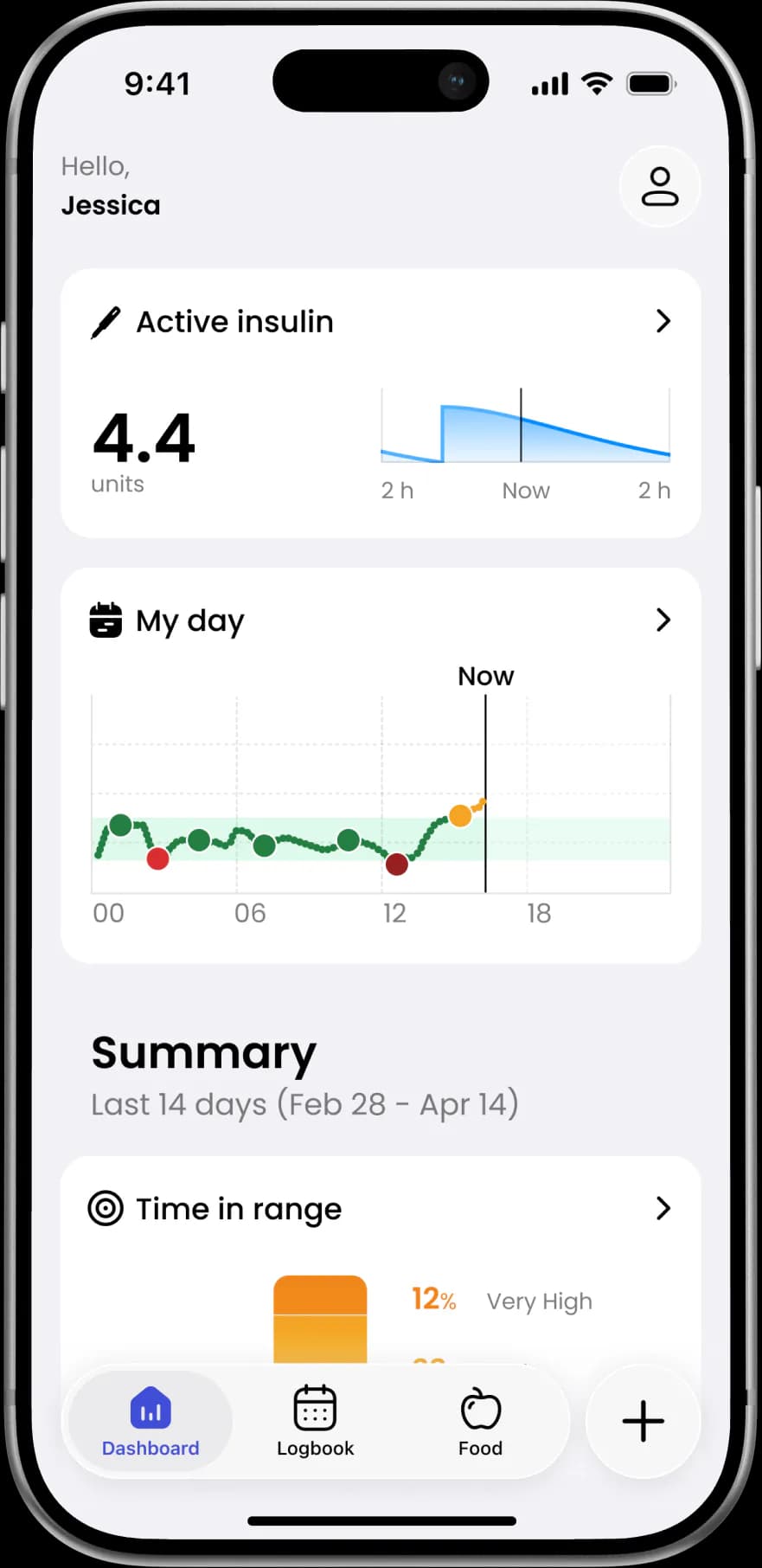
Your day at a glance.
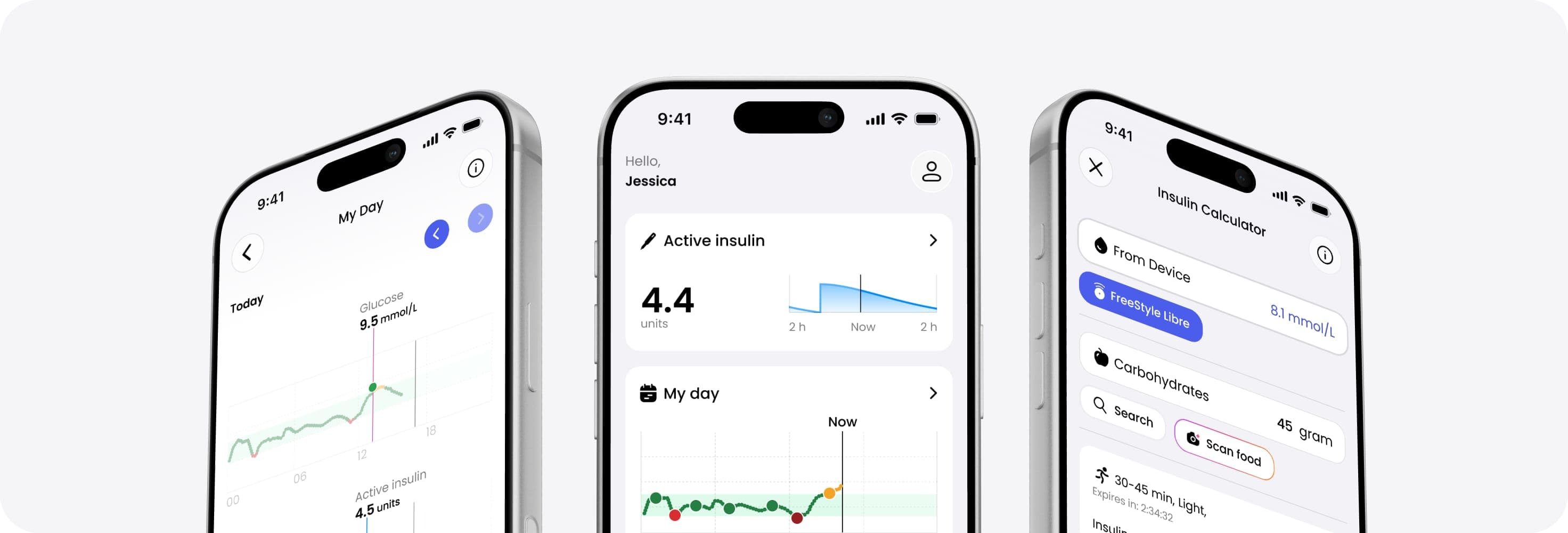
- Active Insulin shows how much fast-acting insulin is still active. Tap the graph to see how it decreases over time.
- My Day shows glucose, insulin doses, carbs and activity over 24 hours. Tap a chart for details and compare periods.
- Summary shows your last 14 days. Tap to see glucose, carbs and fast-acting insulin.
LOGBOOK
Every entry, in one place.
- See past entries and recommendations.
- Tap the add icon in the top right, set date and time, and optionally add glucose, carbs, fast-acting insulin or ketones.
- Tap an entry to edit it, or tap Delete Log.
- Tap the export icon, choose a period and tap “Create PDF” to download or share.
Guide 3 · Calculation
Get an insulin
recommendation.
Based on your glucose level, carbohydrate intake and physical activity. Six steps, start to finish.
STEP 1
Enter rapid-acting insulin.
- Did you take rapid-acting insulin in the last 4 hours?
- Enter units and time, then confirm to continue.
STEP 2
Enter glucose.
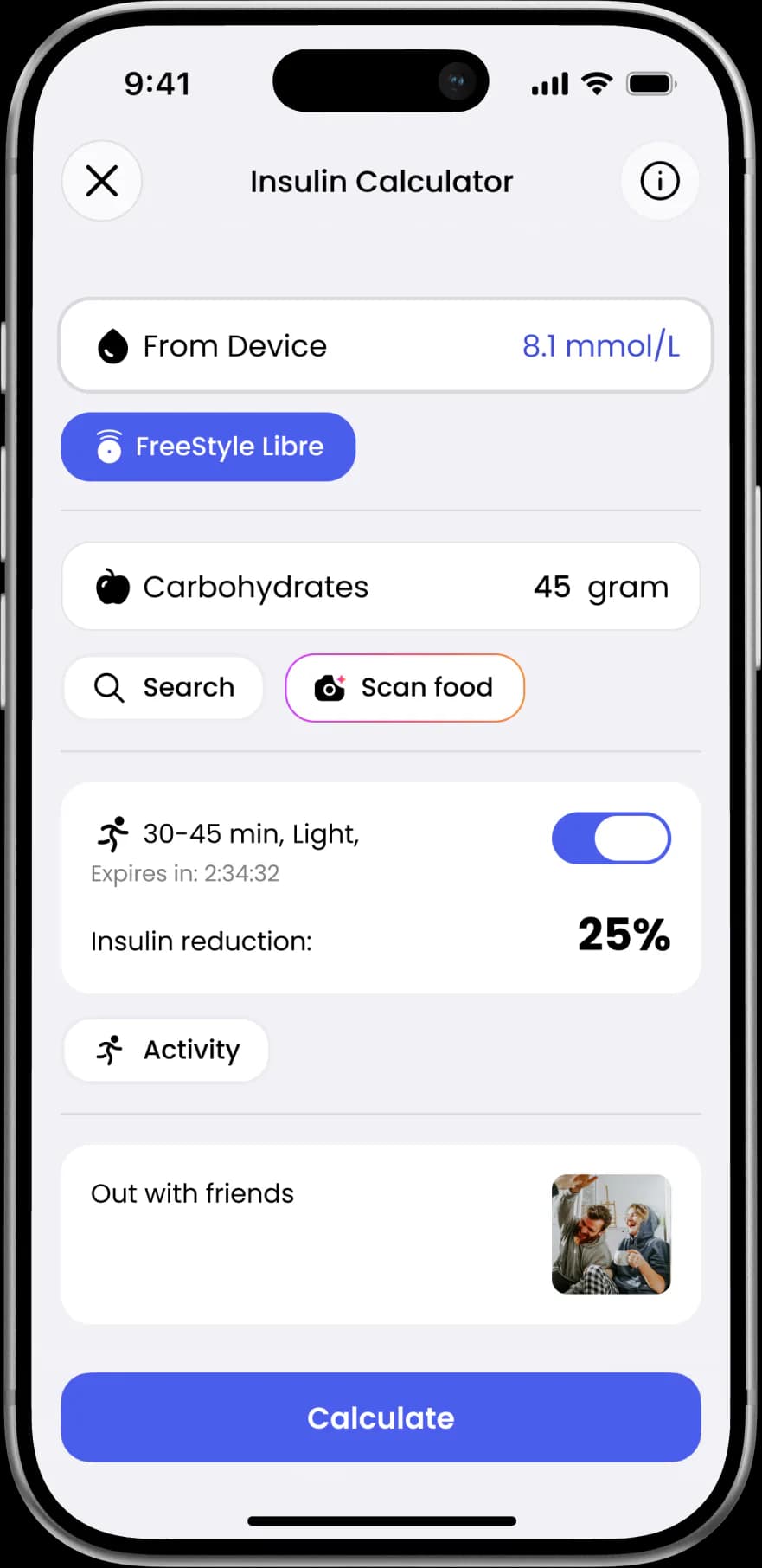
- Enter your current glucose manually, import it from a BGM via Bluetooth, or import a reading from your CGM.
- Readings must be no more than 10 minutes old.
STEP 3
Add carbohydrates.
- Find the item in the Food Library, or enter carbs manually.
- Enter the grams eaten. Hedia calculates the carbs.
- Tap Add to include it in the calculation.
STEP 4
Add physical activity.
- Tap Activity.
- Enter start time, duration and intensity. Notes and category are optional.
- The recommended insulin reduction is shown.
STEP 5
Add notes and photos.
- Tap Notes.
- Write details, and snap a picture of meals, routines or events.
STEP 6
Check and calculate.
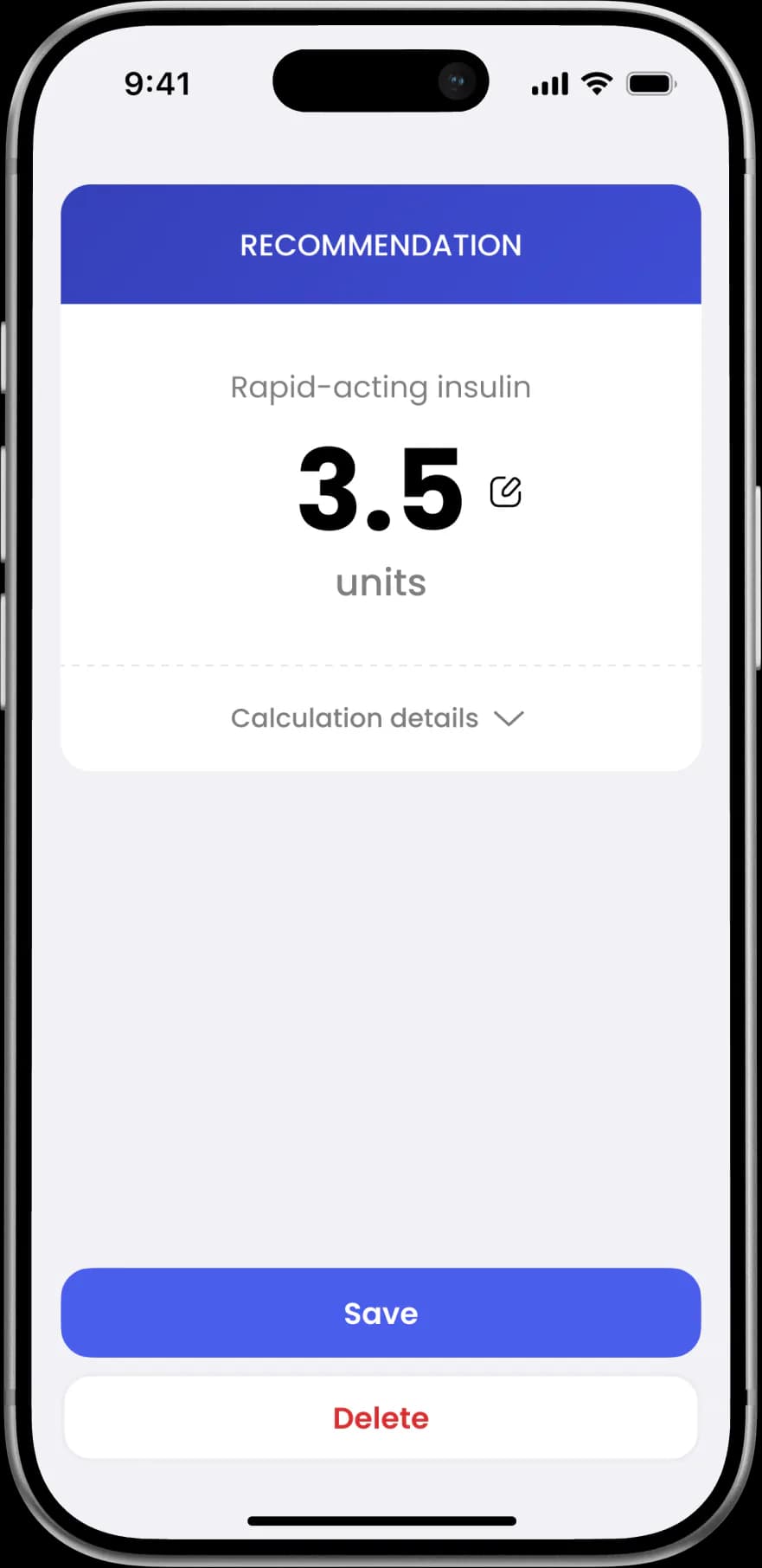
- Review the summary, then tap calculate.
- If glucose is low, Hedia may suggest carbs instead of insulin.
- Tap the number to adjust the dose. Tap Save to log it, or Delete to cancel.
Guide 4 · Food
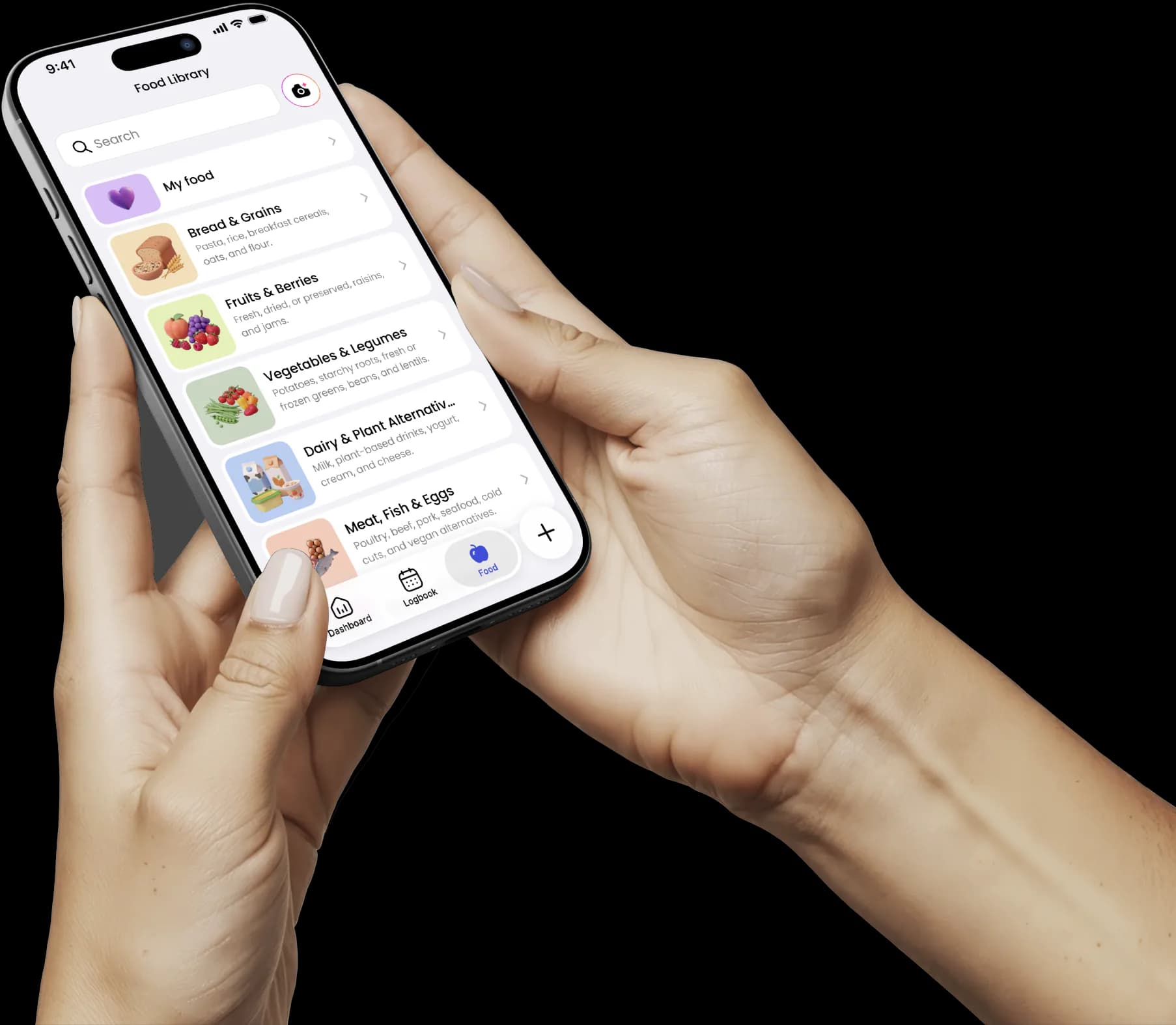
The Food Library.
Find the carbs in foods and drinks, and add your own personal items.
FIND
Find items in the Food Library.
- Type the name of the item in the search bar.
- Matching results appear as you type.
- Tap the item to see carbs per 100 g, with more nutritional details underneath.
CREATE
Create your own food or drink.
- Go to the Food Library and select the My food tab.
- Tap Create food, and choose Food or Drink.
- Enter the name and carbohydrate content per 100 g. Add more nutrition if you like.
- Tap Add to save. Your items appear under My food.
Guide 5 · Settings
Make it yours.
Adjust your personal treatment settings, reminders and connected devices.
My Profile.
View your date of birth, diabetes type, biological sex, height and weight. Edit name, email, password, language and country under Account.
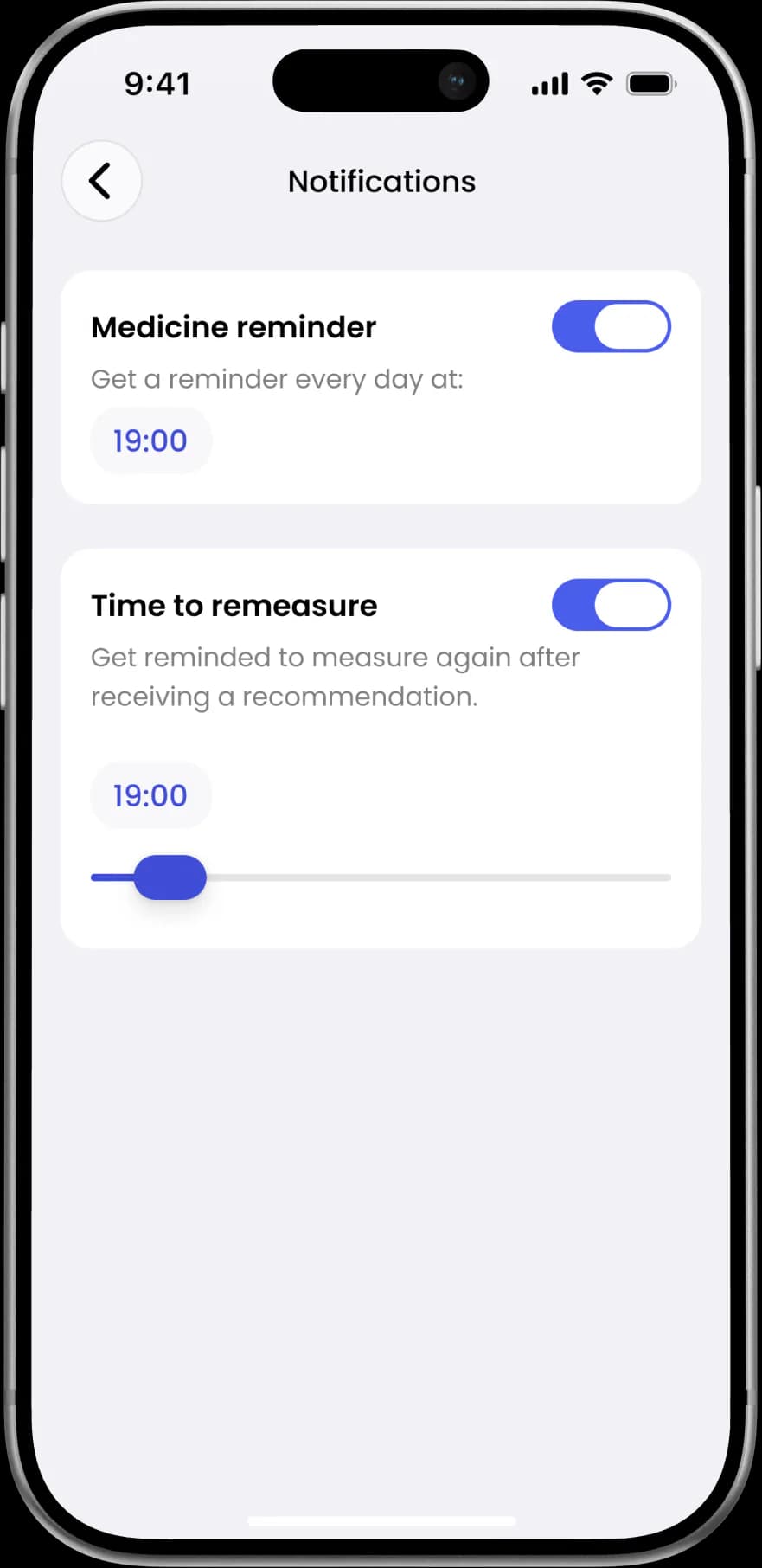
Notifications.
A daily medicine reminder at your chosen time, and a reminder to remeasure glucose 30 minutes to 6 hours after a recommendation.
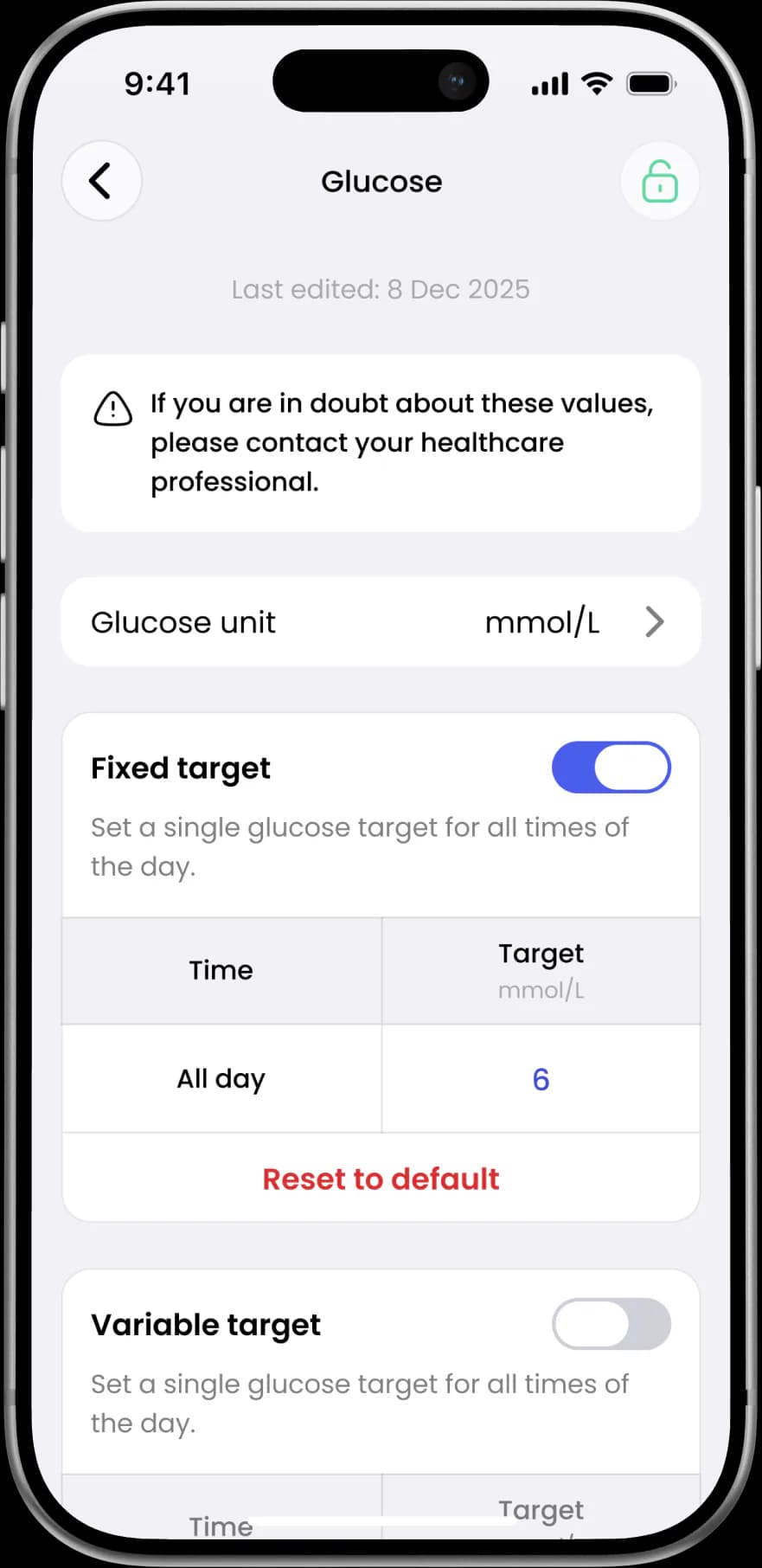
Physical Activity.
Adjust glucose targets during activity, and modify the reduction based on duration and intensity.
Devices.
Connect smart pens, glucose meters and Dexcom CGM (3-hour delay, no alarms). Read and accept the safety information.
Legal and Support.
Find manufacturer information, the user manual and the online support page.
Troubleshooting
Questions? Answers.
Access
Anyone can subscribe directly via our website or in the app. However, if your clinic, insurer, or device partner covers Hedia for you, you will be notified directly with your access code or instructions to activate your free coverage.
Yes. Your subscription is tied to your personal Hedia account, not a single phone. If you get a new phone or log in on another personal device using the same account email, your active subscription and saved data will follow you automatically.
Subscription
If you subscribed through the App Store or Google Play, you can update your payment card directly in your Apple ID or Google Play account settings. If you subscribed online, log in on our web page using your Hedia account and update your payment method.
If you cancel your subscription, your account remains safely stored even after your paid access ends. You will not be able to use the app without an active plan, but if you resubscribe later with the same email, your settings and history will still be there.
If your automatic renewal payment fails, you will need to update your payment details either in your App Store or Google Play settings or by logging in on our web page to keep your access to Hedia.
Connectivity
Yes. Hedia Diabetes Assistant supports compatible CGM sensors, including FreeStyle Libre via LibreLinkUp and Dexcom (which shares readings with a 3-hour delay), alongside a variety of insulin smart pens and blood glucose meters.
Still need help?
Our support team is here for you. Or find the answer in the full user manual.